
Seedream 4.5
Explore Seedream 4.5 for reference consistency, typography and branded visual concepts.
Open the creative workspace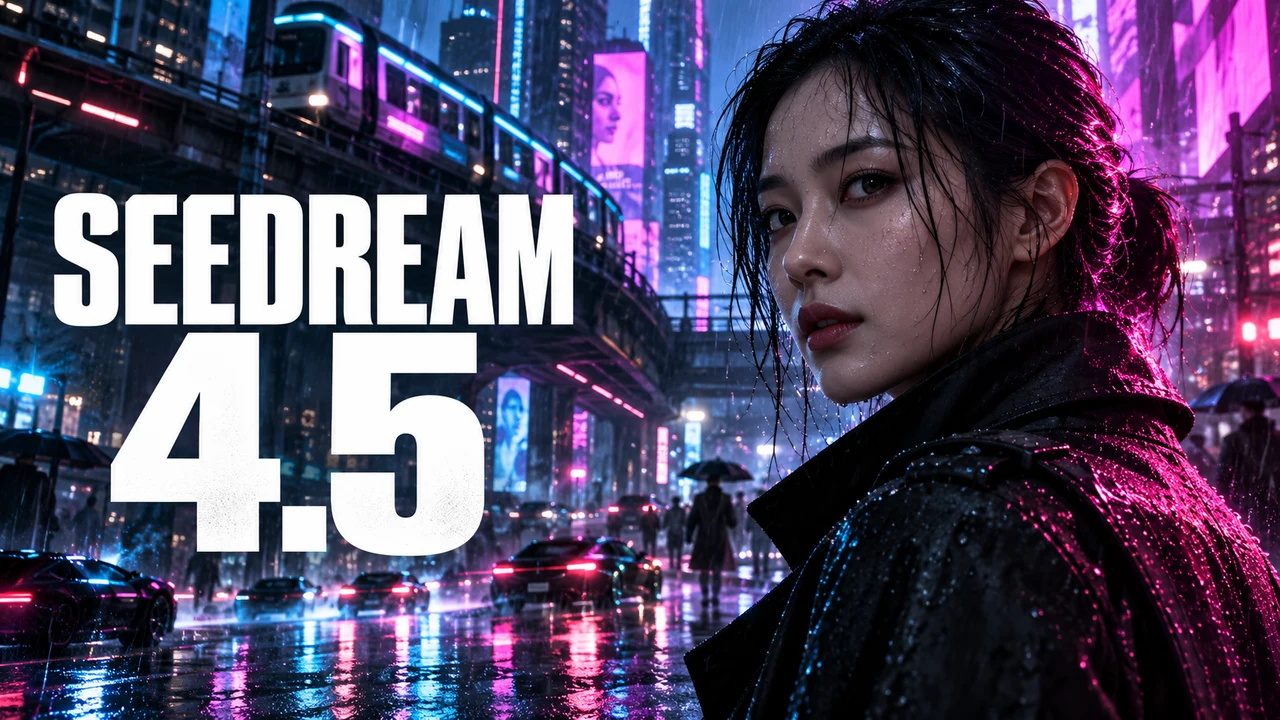
Seedream 4.5 · Supported workflows
Text to image
Explore Seedream 4.5 on Seedream 5.5. Review the available workflows and supported settings, then open the matching creative tool.
Seedream 4.5Image to image
Explore Seedream 4.5 on Seedream 5.5. Review the available workflows and supported settings, then open the matching creative tool.
Why choose Seedream 4.5?
Explore the creative workflow, from the first prompt to your next edit.

Intelligent prompt guidance
Describe subjects, actions, environments and details in natural language. Turn an abstract idea into clear creative instructions, then refine your prompt to bring the result closer to your vision.

Consistent character direction
Use visual references to carry a character’s appearance, clothing and style across scenes. Build a connected direction for stories, product presentations and branded content.

Scene-aware creation
Start with the composition, lighting and atmosphere of your reference. Describe what should stay and what should change so new visual elements fit the scene naturally.

Supported settings
Choose the available model controls and check the credit estimate.
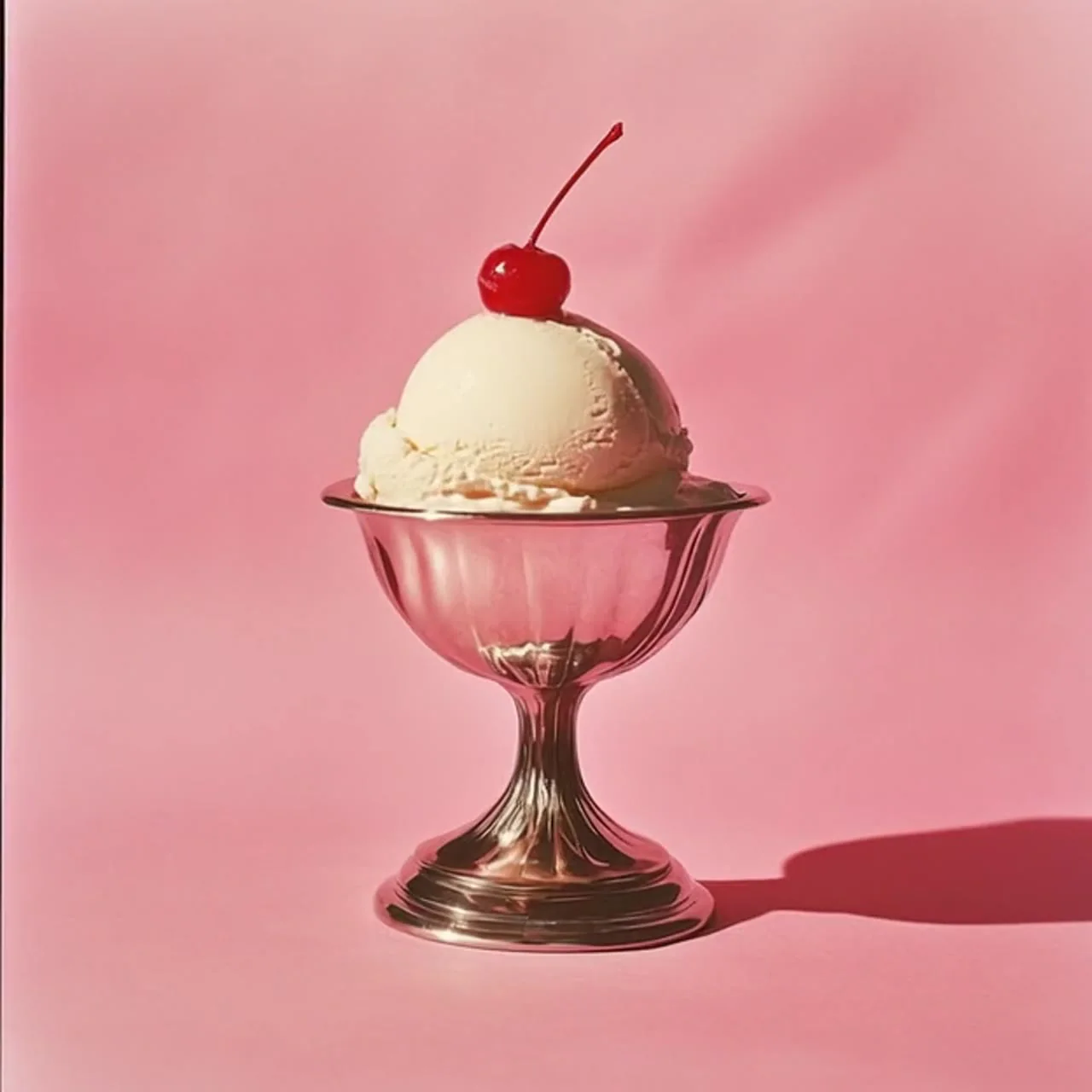
Flexible style exploration
Explore realistic imagery, illustration, cinematic looks and stylized concepts. Combine a style description with references to develop a recognizable visual direction.
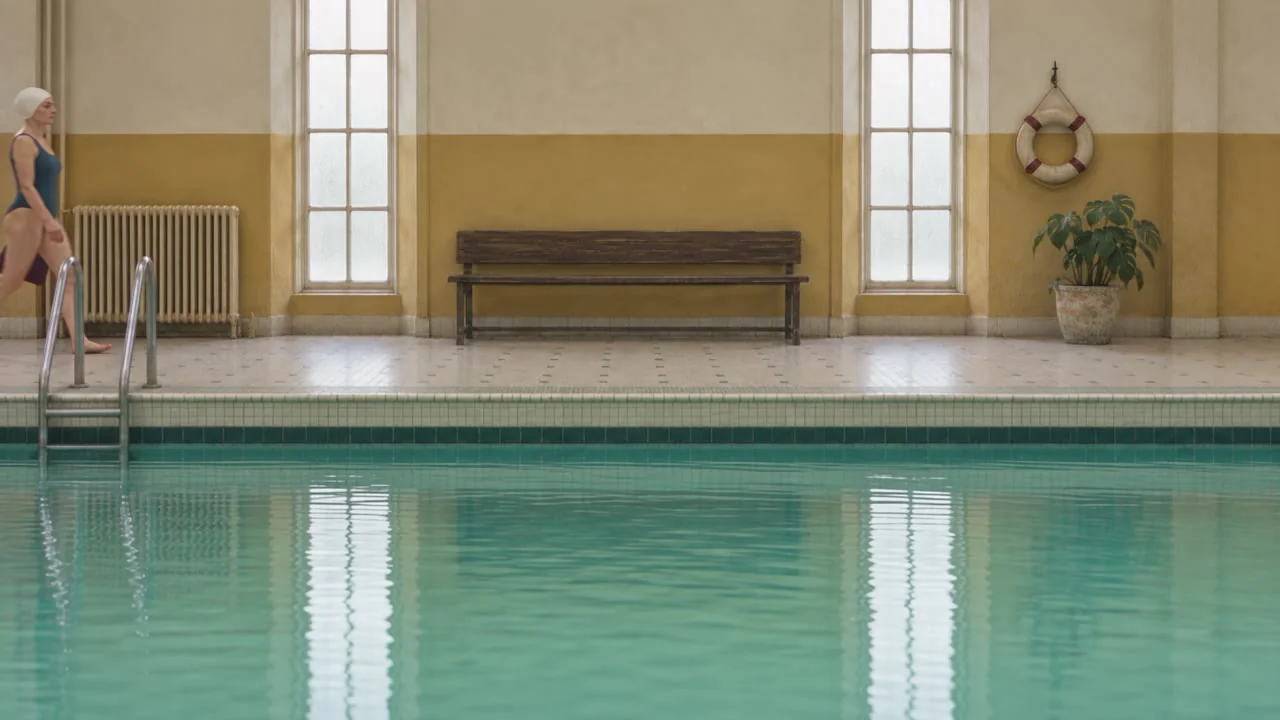
Multi-subject composition
Describe the position, interaction and expression of several subjects in one scene. Use references to organize relationships and give a complex composition a clear focal point.
Seedream 4.5 · Available settings
| Available settings | Text to image | Image to image |
|---|---|---|
| Prompt length | 3000 | 3000 |
| Reference images | — | 1 |
| Aspect ratio | 1:1 / 4:3 / 3:4 / 16:9 / 9:16 / 2:3 / 3:2 / 21:9 | 1:1 / 4:3 / 3:4 / 16:9 / 9:16 / 2:3 / 3:2 / 21:9 |
| Quality | basic / high | basic / high |
How to use Seedream 4.5
A straightforward workflow for creators, designers and marketing teams. Bring a reference, describe your direction and develop your next visual.
- 01
Add your references
Start with a text idea or upload a reference for your product, character or scene. Choose the workflow that fits the content you want to create.
- 02
Describe your idea
Write the changes, style and details you want. Set the aspect ratio and output options, then review your prompt before creating.
- 03
Review settings and credits
Choose the available output settings, check the credit estimate and submit when ready.
- 04
Review and download
Preview the finished result, compare it with your creative direction and download the version you want to use. Reuse your references for the next iteration.
Where to use Seedream 4.5
Develop a visual direction for your next project.
Campaign visuals
Plan a headline, product placement and room for campaign copy.
Product concepts
Describe materials, camera angle, lighting and the scene around your product.
Character exploration
Develop a character direction with appearance, clothing and mood references.
Editorial illustration
Explore a visual metaphor, illustration style and composition for your story.
Brand moodboards
Build a consistent direction around a palette, materials and reference imagery.
Social content
Adapt compositions to the aspect ratios of feeds, stories and cover images.
Seedream 4.5 FAQs
What is Seedream 4.5?+
Explore Seedream 4.5 for reference consistency, typography and branded visual concepts.
How do I create an image from text with Seedream 4.5?+
Choose Image and Text to image on the homepage. Describe the subject, setting, composition, lighting and style, then select a supported aspect ratio. Review the settings and required credits in the creative workspace before submitting.
How do reference images work in Seedream 4.5?+
Switch to Image to image, add your own reference and describe what to retain or change. Check the selected model’s file formats, size and image-count limits before submitting.
Which output settings does Seedream 4.5 support?+
Aspect ratio: 1:1 / 4:3 / 3:4 / 16:9 / 9:16 / 2:3 / 3:2 / 21:9; Quality: basic / high; Reference images: 1; Prompt length: 3000
How does Seedream 4.5 pricing work?+
The pricing page lists plans and credit options. Generation costs depend on the selected model and settings. Review the required credits and your balance before submitting; buying a plan does not itself create a result.
How can I download or edit my Seedream 4.5 results?+
When a task completes, preview and download its images from your creations. Reuse an image as a reference and add a new prompt to continue developing the same visual direction.
Ready to create your next visual?
Explore Seedream 4.5 for reference consistency, typography and branded visual concepts.
Open the creative workspacePricing